
Before you start
Make sure you have:- Luumen installed and signed in. See Installing Luumen.
- A host you can reach over SSH or WinRM, including its hostname or IP.
- Credentials for that host — either a username/password or a username/SSH key.
Get connected
1
Complete onboarding
When you sign in for the first time, a short onboarding flow walks through your account preferences. You’ll be taken to the Add your first host screen.
2
Add your first host
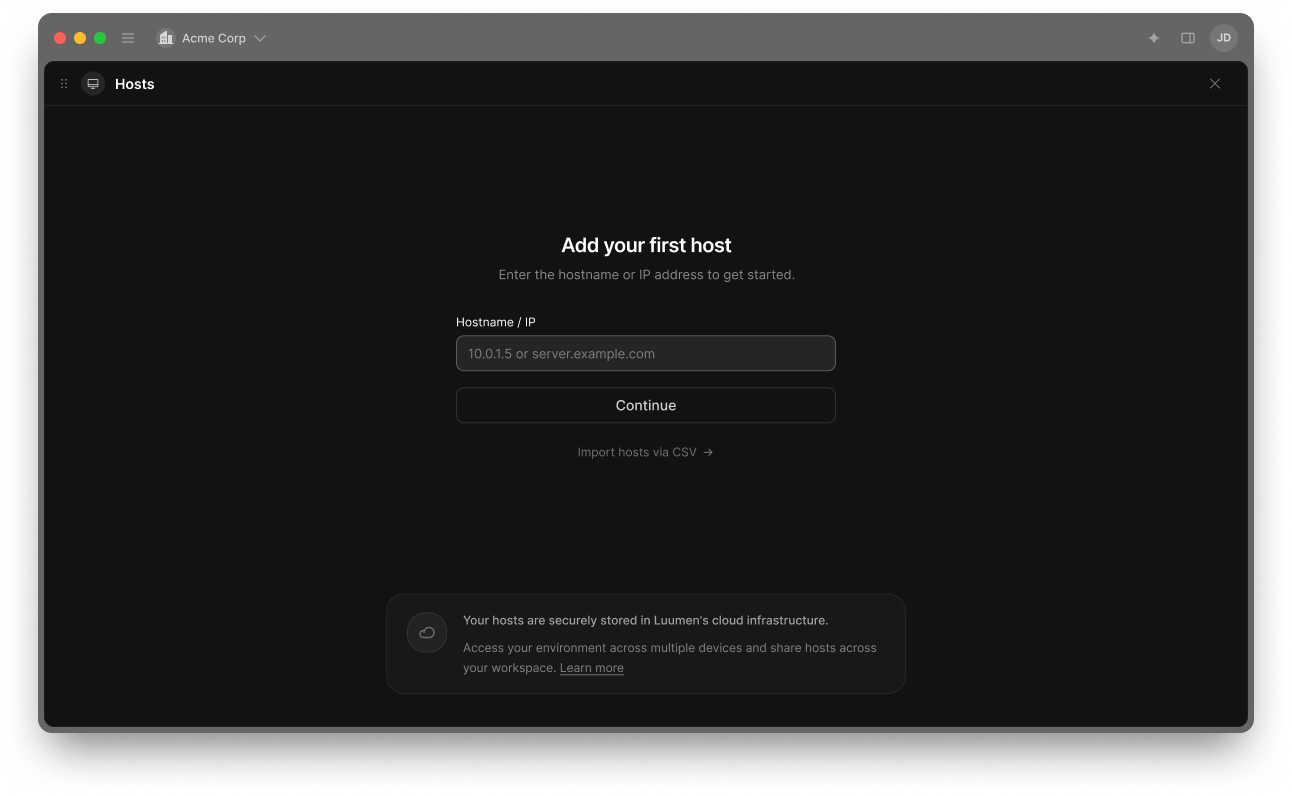
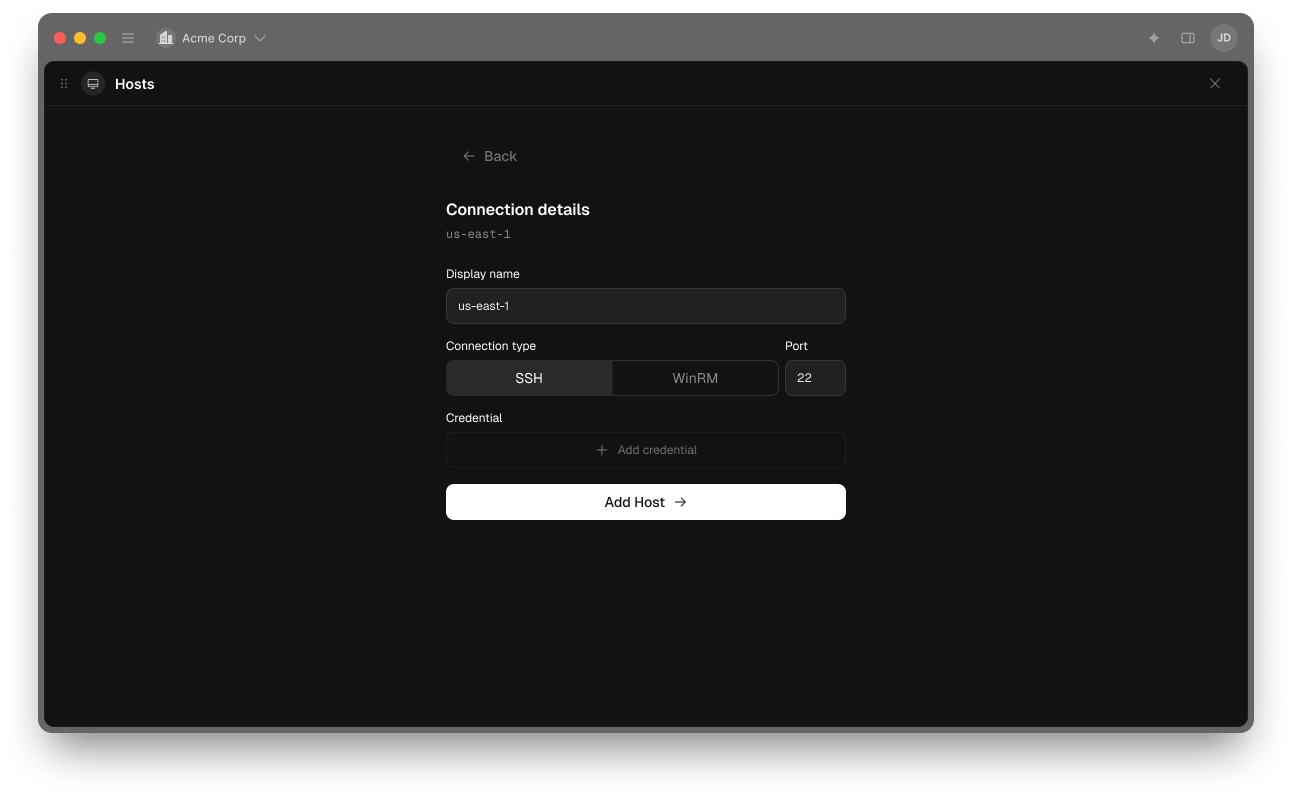
- Hostname or IP address — for example,
prod-web-01.example.comor10.0.1.42. - Connection type — choose SSH (Linux) or WinRM (Windows).
- Credentials — either:
- Password — enter username and password.
- SSH key — enter username, then upload or paste your private key. Luumen stores the key securely in the cloud so you can use it from any device.
3
Connect to the host
Click Connect. Luumen opens your terminal as a widget in the current tab. The AI Chat widget opens alongside it automatically, ready to help with the host you’re connected to.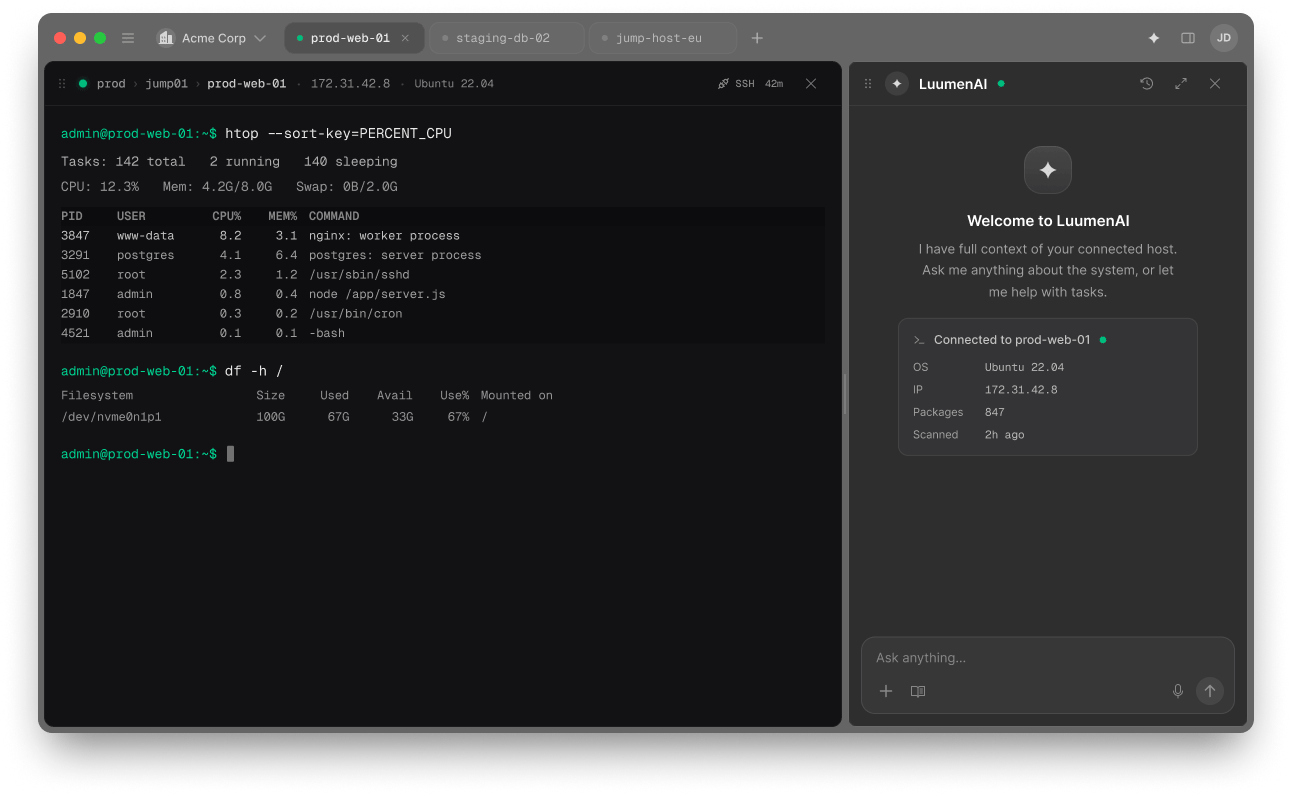
4
Try LuumenAI
With the session open, ask LuumenAI a question about the host like: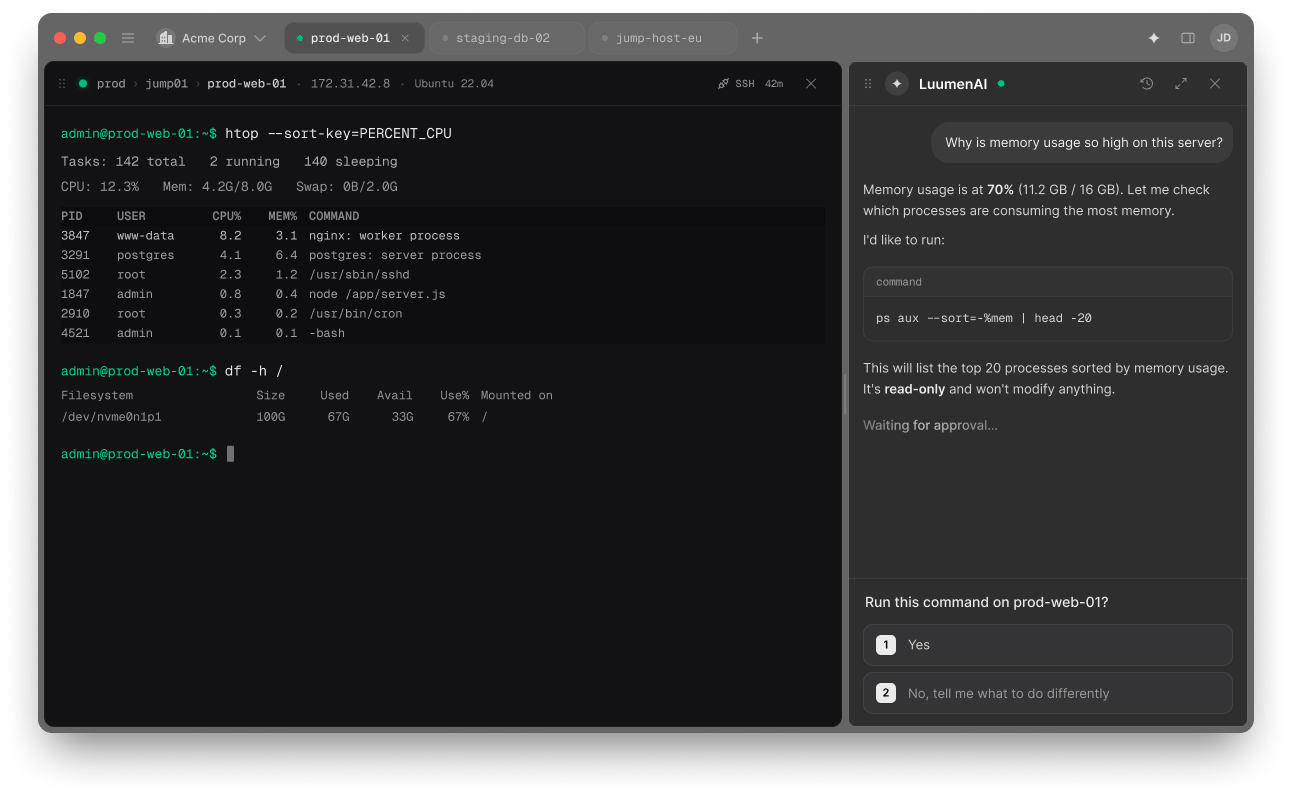
LuumenAI’s context is scoped to the host you’re currently connected to. Switch to a different host and it answers about that one instead.
What to try next
Now that you’ve got a connection working, a few useful follow-ups:- Ask harder questions. “What’s the current disk usage on this server?” “Are there any failing services right now?” “Has this server been patched recently?”
- Approve a remediation command. When LuumenAI proposes a fix, read its explanation and approve it to run on the host.
- Add more hosts. From the Hosts area, add the rest of the servers you work with. SSH keys carry over automatically.
- Try a Skill. Skills turn runbooks into reusable AI procedures. If your team already has SOPs, those are natural candidates.
Need help?
- Browse the Luumen help center for articles on connecting, billing, and team management.
- Running a Luumen-managed agent across a fleet for scheduled compliance scans, SAP monitoring, or integrations is part of Luumen Enterprise.